

The Previous article was mostly about the theoretical concepts that come handy when working with the Android NDK.
In this article, we are going to see how we can call native code from Kotlin.
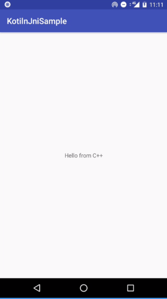
I created a KotlinJniSample Application that has a simple HelloWorldexample to showcase how native code is called from Kotlin.
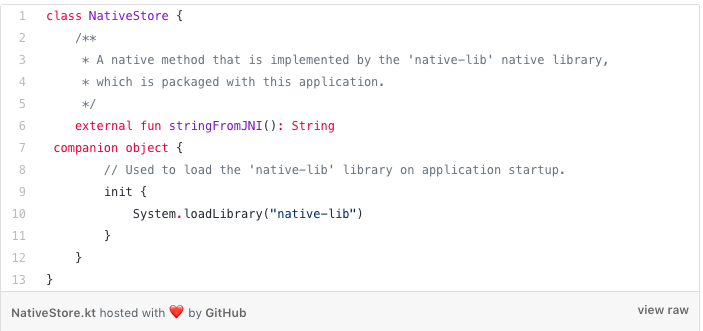
I created a class NativeStore to encapsulate the native methods.
The definition of the native function stringFromJNI() is available in native-lib.cpp file

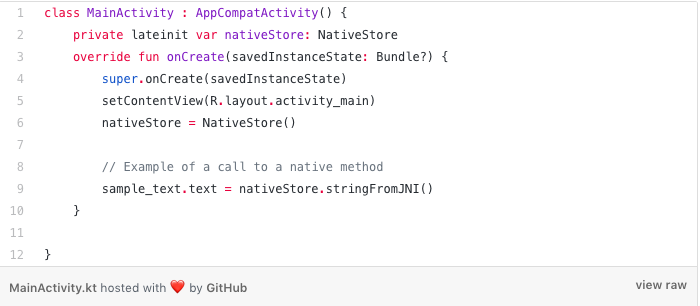
and the MainActivity Class where we show TextView with text from the native code( A little DI magic can also be added to extract the initialization.

Now that we have everything ready its time to take a look at our CMakeLists.txt and gradle file.
CMake Configuration
Although Android creates the CMake file for us with all the relevant functions, a little information comes in handy if we change the library name or so.
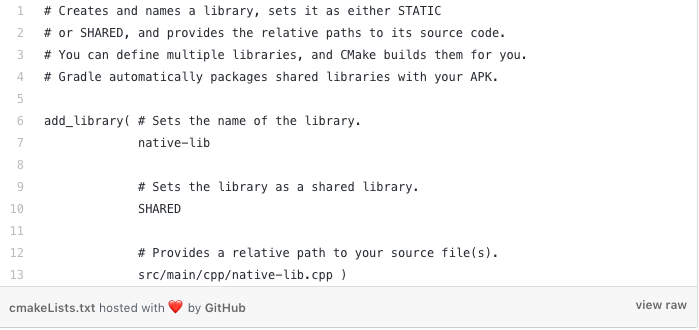
In the CMakeLists.txt file:add_library function is used to add the path to the source code(in our case native-lib.cpp).
There are a lot of CMake functions at our disposal.Let’s look at some of the core functions from the configuration:
- add_library: creates and names a library, sets it to either
STATICorSHARED, and provides the relative paths to its source code.
- find_library: searches for a specified pre-built library and stores the path as a variable.

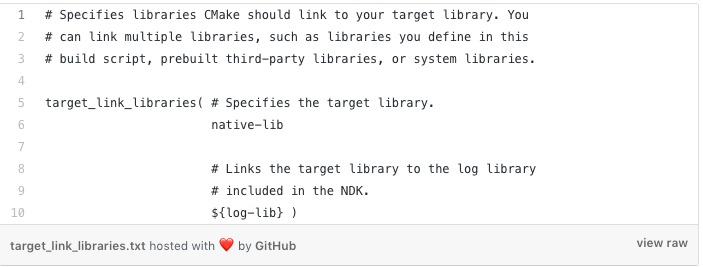
- target_link_libraries: is used to specify libraries CMake should link to your target libraries that were created by
add_library.
Gradle Configuration
This part is handled in Android by default. We see a path to the CMakeLists.txt and cpp flags added to the gradle file.
Now that we have everything ready, we are good to run the app using NDK.
We Created An App Using The Android NDK With Kotlin
In this article, we learned how to create a simple App using Kotlin and NDK. In part 3 we will see how to use callbacks from c++ to Kotlin.
TL;DR
- We used
init block of companion objectinstead ofstatic block - We used
externalkeyword instead ofnative. - We linked to the source code.